 66
66 3 minutes read
What are Custom fields?
Custom fields allow company administrators and travel managers to create additional fields in Roundtrip based on the data their business needs.
For example, a company can add fields for:
- Department
- Project
- Cost center
- Client
- Trip purpose
- Internal business code
- Event name
Why Custom fields matter
Structured travel data helps teams understand, manage, and report on business travel with more consistency.
Custom fields support:
- Better cost allocation: Connect trips and orders to the right departments, projects, clients, cost centers, or business activities.
- Cleaner reporting: Collect consistent data that is easier to use in reports and invoices.
- More complete booking data: Make important fields required so business travelers or travel managers can provide the necessary information before a booking is finalized.
- Better-informed approval decisions: Give approvers access to relevant Custom field information directly on the approval page.
- Less manual work: Reduce follow-ups, data cleanup, and reliance on comments or spreadsheets after booking.
How Custom fields work
Custom fields are built around three simple decisions.
- What information to collect
Choose the field name and format. For example, the field can be a text field for internal codes or event names, or a list field for departments, cost centers, clients, or trip purposes. - Where and when the field appears
Apply the field to trips or orders, choose relevant services, and decide whether it should be shown during booking or added later. - How the field should be used
Make the field required or optional and choose where the completed information should appear, such as reports, invoices, or filters on the Trips page.
How to create a Custom field
To create a Custom field, go to: Settings -> Custom fields.
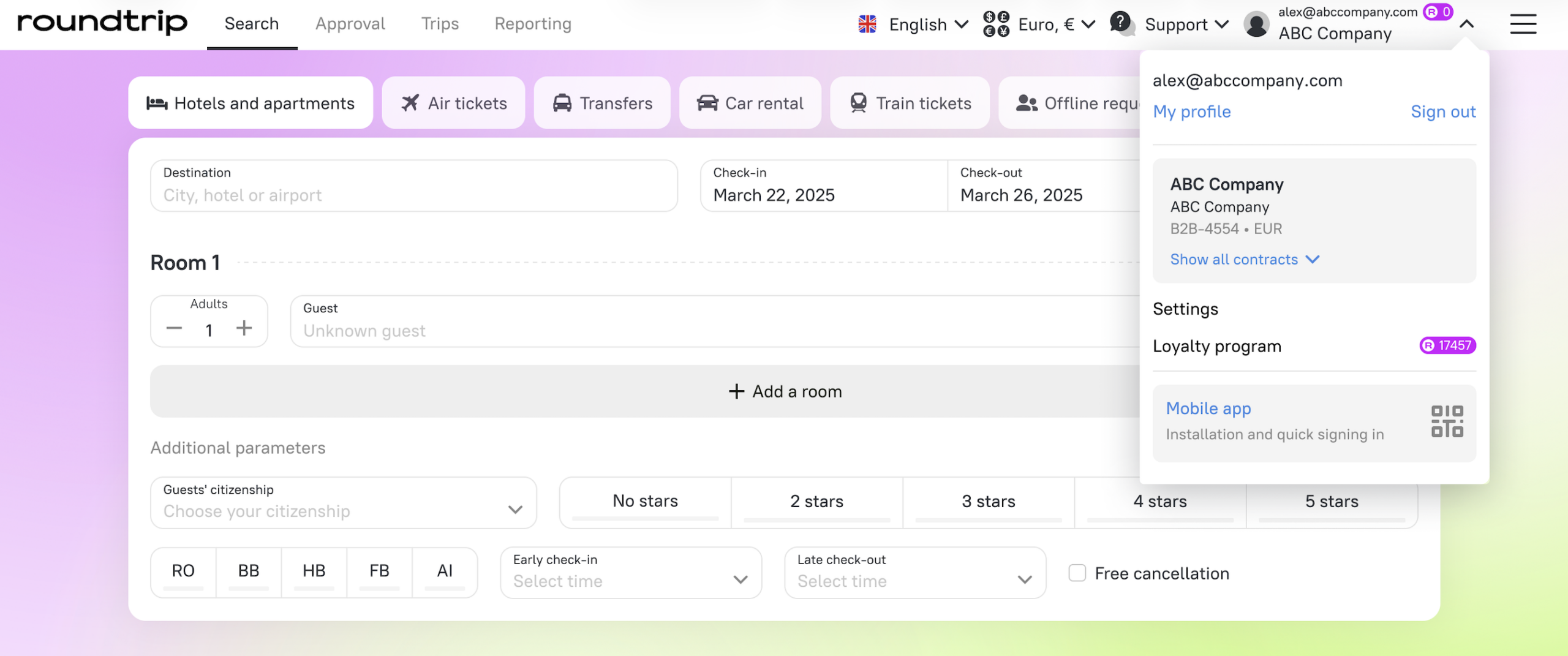
Then:
- Create a new field and add its name.
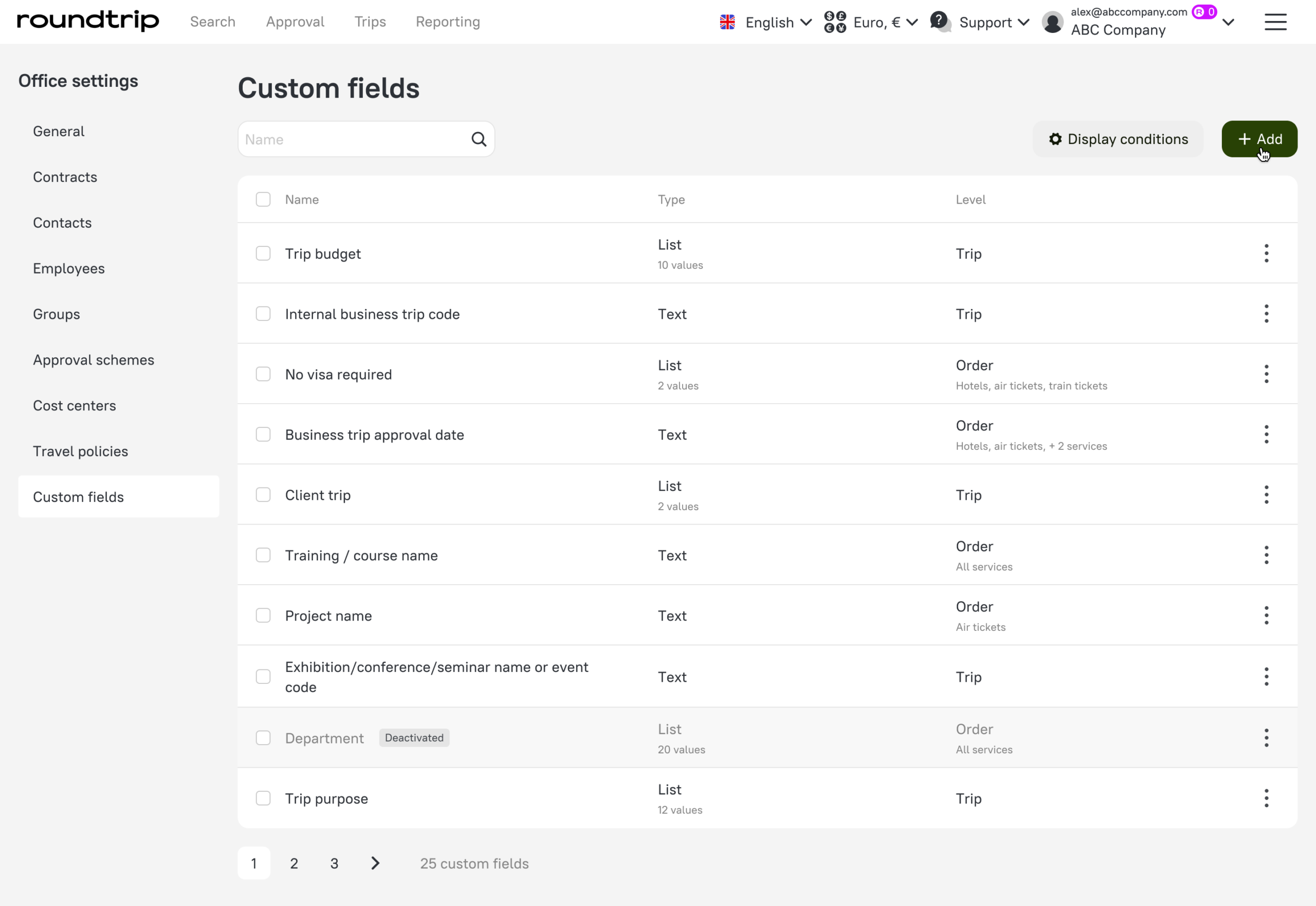
- Choose the field type: text or list.
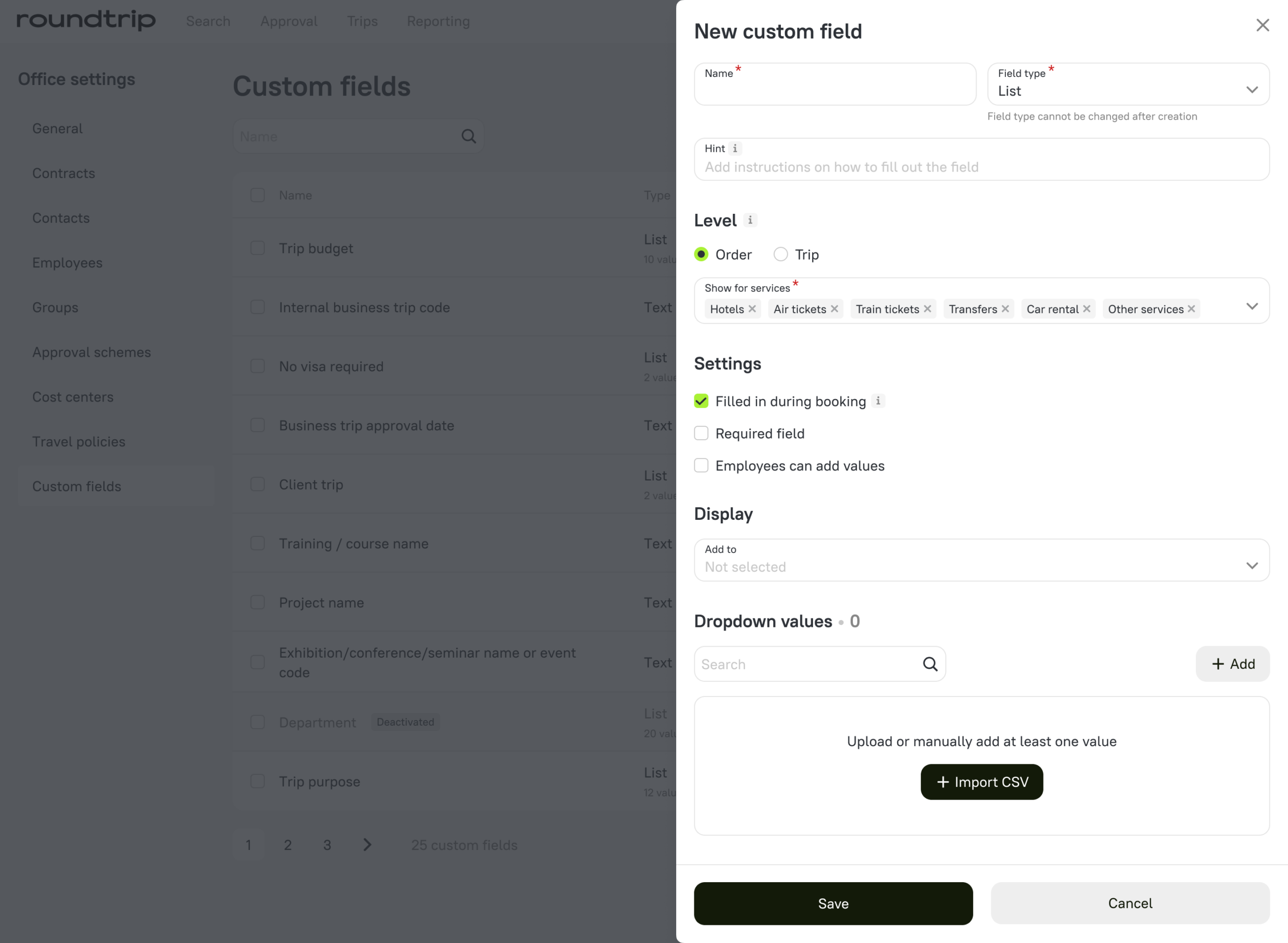
- Select where it applies: trip or order level, and the relevant services.
- Set the field behavior: required or optional, shown during booking or added later.
- Choose where the field should be displayed and save it.
For list fields, values can be added manually or imported via CSV.
Display conditions
Custom fields can support conditions, so additional fields appear only when they are relevant.
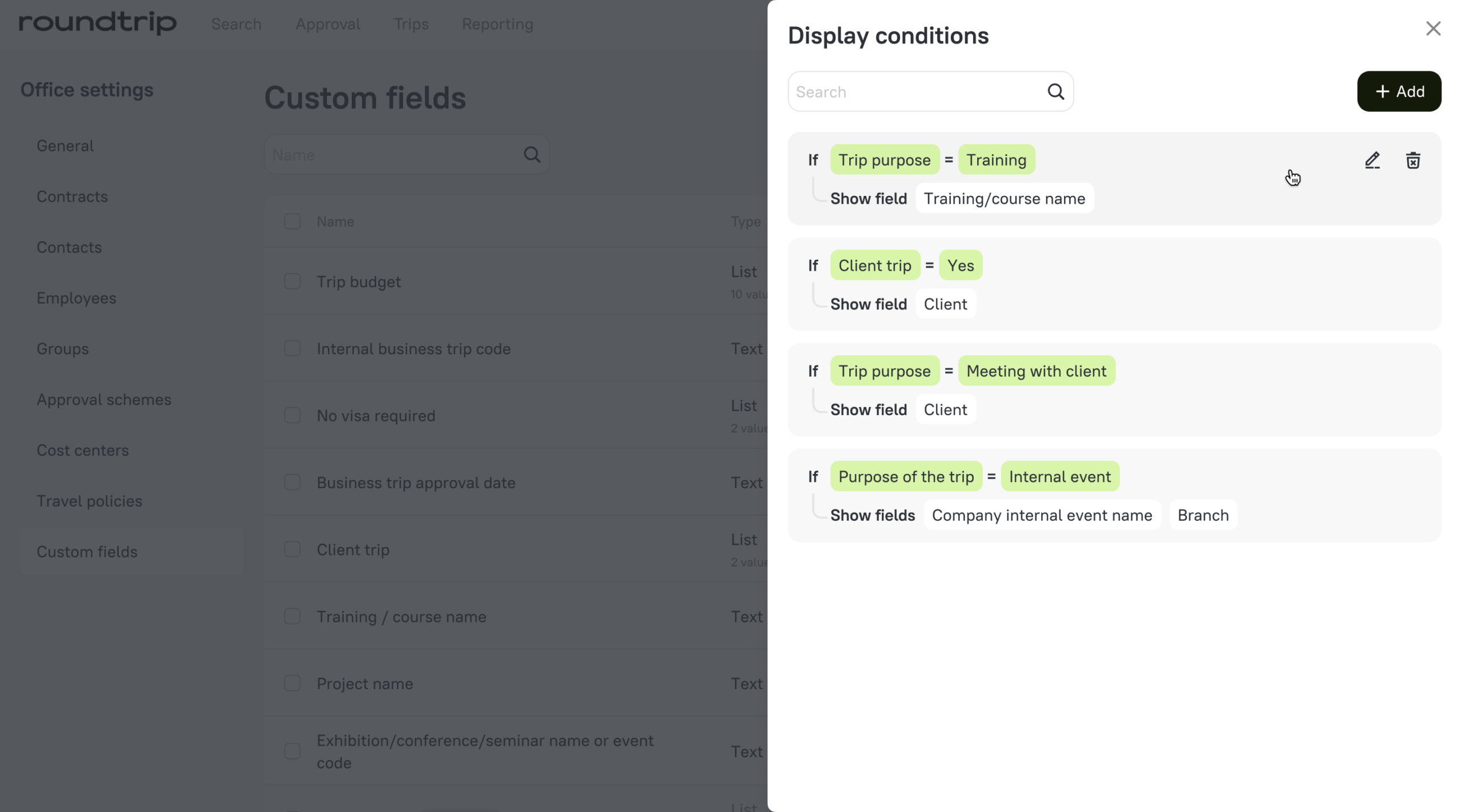
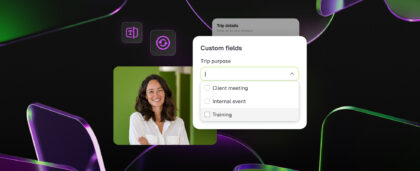
For example, if a user selects Training as the trip purpose, Roundtrip can display an additional field for the course name.
This helps keep the booking process focused while still collecting important details when they are needed.
Common ways to use Custom fields
Project and cost tracking
Add Project or Cost center fields to connect travel spend with the right budget.
Department reporting
Use a Department field to understand how travel costs are distributed across teams.
Client billing
Add Client or Client billing fields to separate internal travel from client-related travel.
Trip purpose analysis
Use a Trip purpose list to keep travel reasons consistent and easier to analyze.
Travel data tailored to your business
Custom fields give companies more flexibility in how they structure travel data in Roundtrip.
By collecting business-specific information directly in the platform, teams can improve cost visibility, create cleaner reports, give approvers more context, and reduce manual work.
Want to learn more before getting started? Read the FAQ for setup details and common questions, or open Custom fields in Roundtrip to create your first field.